

Have you ever wondered if your coffee machine could be as precise as your favorite playlist? Custom brew profiles might be just the trick. Your digital coffee maker works a bit like tuning an instrument, letting you adjust every setting so the taste is spot on.
Let's walk through easy steps to hook up your machine, fine-tune its settings, and save your perfect brew. With a few simple tweaks, every cup will feel as comforting as your favorite song. Give it a try and see how your coffee routine transforms into a delightful ritual.
Step-by-Step Programming Digital Coffee Machines for Custom Brew Profiles
Programming your coffee machine is a lot like creating your own music playlist, where every setting adds its own special note. In this guide, we'll chat about how to connect your machine, adjust its settings, and save personalized brew profiles that you can even manage from afar.
- First, hook up your machine using USB, Wi-Fi, or Bluetooth to the control panel.
- Turn on your unit and open the firmware menu to begin.
- Pick the Brew Profile Settings option.
- Set the temperature, maybe around 92 degrees Celsius, to suit the strength you enjoy.
- Adjust the pressure to about 9 bar so you get a smooth and steady extraction.
- Choose a pre-infusion time in the 10 to 15 second range and set the water flow rate to roughly 2 mL per second. These choices help the water cover the coffee evenly.
- Give your profile a name that shows off your coffee style, then save it to your machine's memory or to cloud storage.
- Finally, enable remote brewing features and hook up a voice assistant so you can manage your profile hands-free. Cool, right?
For more details, check out our full guide on sensor-calibrated coffee extraction at https://aboutjoe.com?p=114.
Security is key in this digital setup. Using signed firmware along with rollback protection keeps your device safe. Plus, remote profile management makes it easy to fine-tune your brew even when you're not near the machine, ensuring every cup tastes exactly how you like it.
Understanding Digital Controls and Interfaces in Brew Profile Setup

Today’s coffee machines come with easy-to-use screens that add a smart twist to your morning routine. Take the Nespresso Expert UI as an example, it lets you tweak serving sizes, adjust temperature settings, and even handle capsule reordering with a few quick taps.
Then there’s the Keurig K-Supreme Plus SMART, featuring BrewID. This cool function automatically senses which pod you’ve loaded and even lets you set up your brew schedule from afar. And if you’re looking for even more control, the Siemens EQ.9 Connect steps it up with multi-user profiles and Wi-Fi checks that keep tabs on things like pump pressure, grinder performance, and water quality. It really makes dialing in your perfect cup as simple as tuning your favorite radio station.
Features include:
- Personalize your cup with serving size and temperature controls.
- Enjoy the convenience of auto-pod recognition and remote scheduling.
- Keep an eye on pump pressure and water quality for a reliable brew.
- Receive real-time notifications and track your coffee use.
- Quickly reorder pods with built-in online ordering options.
But that’s not all. Many machines now integrate with voice assistants like Alexa, Google Home, or Siri. With just your voice, you can control your coffee maker and easily weave it into your smart home setup. Curious to learn more about these smart features? Check out our digital brewing guide at https://aboutjoe.com?p=74.
Configuring Firmware and Software for Precise Brew Profile Programming
Firmware is like the heart of your digital coffee maker. It controls key elements such as temperature and pressure to make sure your brew comes out just right. This code works hand-in-hand with the hardware, ensuring every shot of espresso is consistently good. Think of it as the brain guiding the extraction process by adjusting settings based on sensor readings (sensors check things like temperature and pressure). For a deeper look at how firmware and software work together in modern coffee machines, visit our guide on smart coffee brewing technology at https://aboutjoe.com?p=85.
Firmware Setup
Start by downloading the latest firmware update from our portal. Once downloaded, verify the file’s integrity with a checksum, it’s a simple check to ensure everything is safe and sound before installation. You can connect your coffee machine with a USB cable or use the over-the-air update if your device supports it. The update process even includes smart safety measures, like firmware signing and rollback prevention, so if something doesn’t go as planned, you can easily revert to a previous version. This thoughtful setup keeps your machine performing consistently, no matter what.
Code Configuration
After you install the update, it’s time to set up your brew profiles using a simple JSON file. Each setting in this file plays an important role. For example, you might specify a temperature with "tempSetpoint" and lay out the pressure steps with "pressureCurve". Here’s what a sample configuration looks like:
{
  "profileName": "MorningLight",
  "tempSetpoint": 91,
  "pressureCurve": [3, 9, 9],
  "preInfusion": 12
}
Every detail here is clear: the profile name tells you which blend it is, "tempSetpoint" sets the brewing temperature, "pressureCurve" outlines the pressure levels, and "preInfusion" determines how long the coffee grounds are gently wet before full extraction. Each choice affects the flavor of your coffee.
Don’t forget to back up your configuration files regularly. With proper version control and rollback practices, you can always keep your coffee machine running smoothly, even after updates.
Designing and Managing Custom Extraction Profiles on Espresso Machines
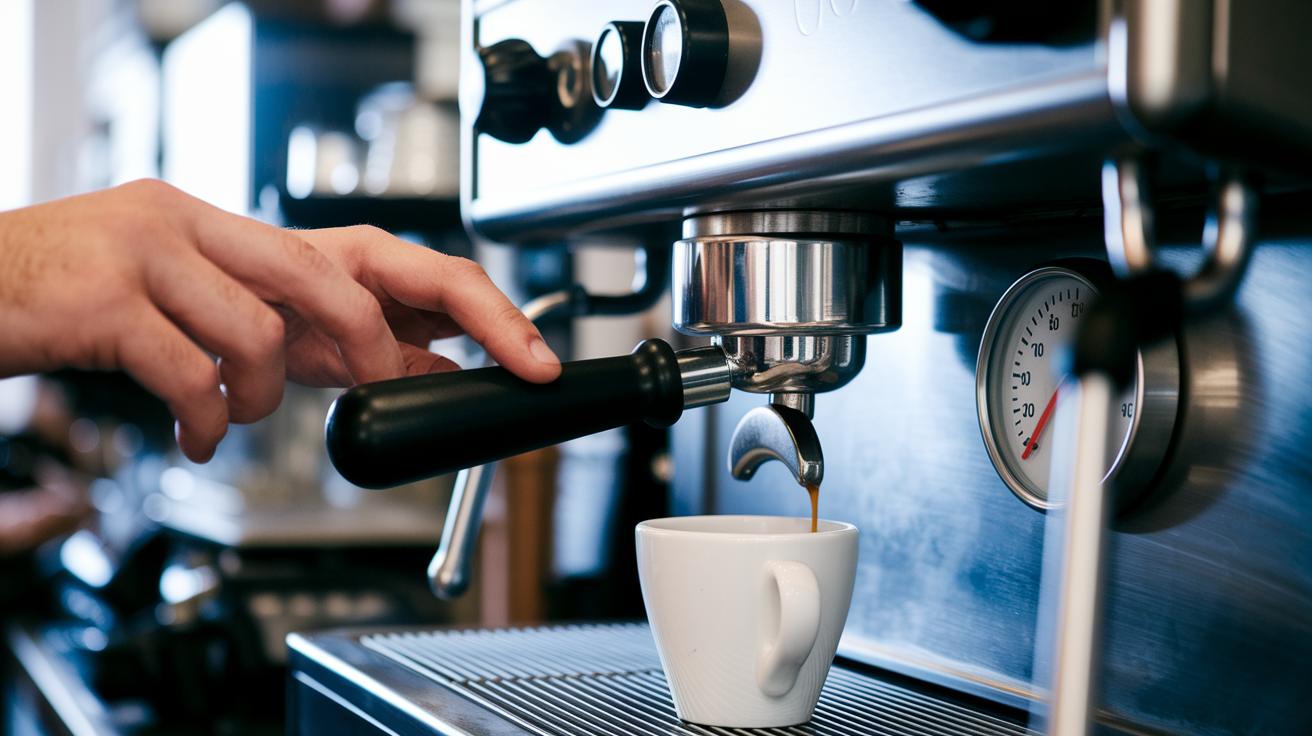
Ever wonder how to get that perfect sip every time? Pressure profiling lets you go beyond the usual 9 bar by tweaking your espresso machine’s settings. You can adjust pre-infusion, ramp, and hold times to draw out richer flavors and keep every shot on point. Whether you own a La Marzocco Strada, Leva X, or Rocket R9 One, these tweaks help you highlight your coffee's unique character.
Think of it like having a built-in recipe for every roast. With different settings for each bean, you can easily craft a brew that matches the mood and flavor you’re after.
| Roast Type | Pre-infusion | Ramp | Hold Extraction |
|---|---|---|---|
| Light Roast | 3 bar for 12 sec | Ramp to 9 bar over 5 sec | Hold for 18 sec |
| Medium Roast | 4 bar for 10 sec | Ramp to 9 bar over 4 sec | Hold for 20 sec |
| Dark Roast | 6 bar initially | Ramp to 9 bar over 3 sec | Hold for 22 sec |
Once you’ve got your settings dialed in, you can save your custom profiles directly to the machine or even sync them to the cloud. Naming each profile, maybe “Morning Brew” for a light roast or “Bold Night” for a dark roast, helps you pick the right one quickly. Managing these profiles across different machines makes your whole process smoother and ensures every cup you pull is just as great as the last.
In essence, crafting your own extraction profile not only deepens the flavor of your brew but also puts your personal touch into every coffee you make.
Integrating Sensor Data and Calibration Protocols for Brew Accuracy
Sensors are essential for crafting that perfect cup every time. Devices like the pressure sensor, thermocouple (a simple tool that measures temperature), flow meter, and RTD probe (which helps check for steady temperature) all work together to monitor key details such as pressure, heat, and water flow. When these tools start to drift, it can subtly change the flavor of your coffee. Plus, the water quality matters, a good filter stops scale buildup so the sensors stay on point.
| Sensor Type | Parameter | Calibration Interval | Calibration Method |
|---|---|---|---|
| Pressure Sensor | Pressure | Monthly | 9 bar reference pump |
| Thermocouple | Temperature | Quarterly | Ice-bath method |
| Flow Meter | Flow Rate | Bi-monthly | Graduated cylinder test |
| RTD Probe | Temperature Stability | Quarterly | Calibration bath |
Using firmware to send calibration reminders is a clever way to keep your sensors reliable. The machine itself will give you a heads-up when it’s time for a check, so you can be confident that every brew meets that perfect balance.
Troubleshooting Firmware and Profile Programming Errors in Smart Brew Devices
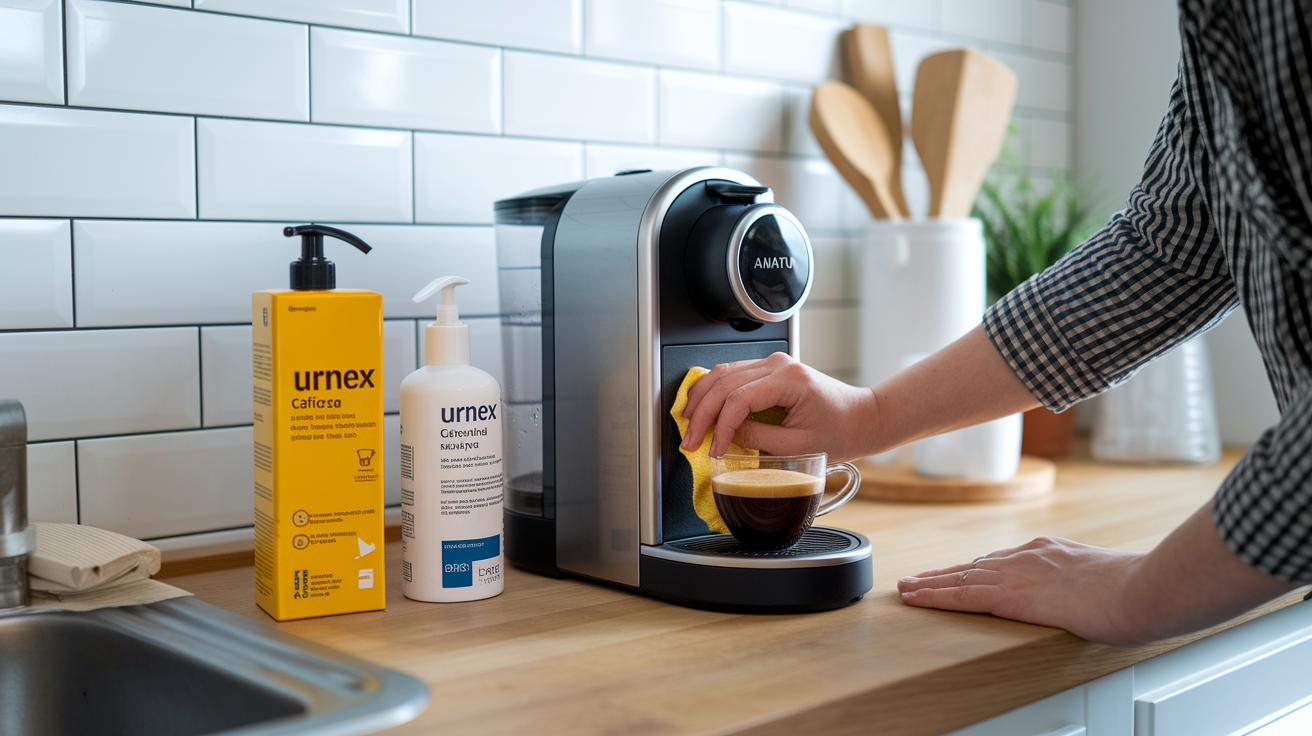
Keeping your smart brew device in tip-top shape means some regular attention. A quick clean and check-up of the connections, not unlike giving your favorite coffee maker a little love, can help avoid many common issues. Using trusted cleaning products like Urnex Cafiza for the group-head and Urnex Rinza for the milk system is a simple way to ensure everything stays running smooth.
Here are a few quick fixes you might try if things go awry:
- Firmware install fails because of a checksum mismatch? Make sure the checksum of your downloaded file matches up, and if it doesn’t, try downloading it again.
- If your profile upload times out due to a Wi-Fi dropout, check your network signal and reconnect the device.
- When sensor communication is lost, it might be a wiring issue, take a look at the sensor wiring and make sure all connectors are snug.
- Seeing a “parameter out of range” error because of invalid JSON? Open the JSON file in a text editor, give the code a once-over, and fix any mistakes you find.
- If pressure seems unstable, it might be a worn gasket or shaky shower screen. A precision tamper can help you check for consistency, and you can replace any parts that have seen better days.
- And when the temperature overshoots, it could be a matter of misconfigured PID settings. Adjust them according to the manufacturer’s instructions and run a test to see if things balance out.
Before you dive into any fixes, remember to back up your profiles. Exporting your custom brew settings is like keeping a secret recipe safe, ensuring that after troubleshooting, your device is ready to serve up the perfect cup every time.
Best Practices for Custom Brew Profile Management and Firmware Updates
Cloud syncing isn’t just about keeping a backup anymore. It now lets several users manage their brew profiles over Wi-Fi. That means you get AI suggestions based on your own taste and health data, blending different settings into one neat profile. Imagine your personal cloud syncing with your team’s tweaks so your recipes can adjust right on the spot.
Here are a few handy tips:
- Always back up your profiles before you make any firmware changes.
- Test each profile right after an update.
- Take a look at the change logs to catch any modifications.
- Upgrade your firmware as soon as a new version is released.
- And remember to schedule regular sensor calibrations.
Doing these updates during quieter times helps your device run smoothly without interrupting your busy coffee rush.
Final Words
In the action, this post ran you through connecting your machine, adjusting brew parameters, updating firmware, and setting up sensor calibrations for a smooth brewing process. It showed how to manage profiles remotely and back them up for peace of mind. You now have a clear roadmap that mixes practical tips with essential firmware updates. Enjoy programming digital coffee machines for custom brew profiles and keep finding that perfect balance for a great cup every time.
FAQ
How to program a Cuisinart or Mr. Coffee programmable coffee maker to brew at a certain time?
Programming these coffee makers means using their control panel to set a brew time. You can tap the timer settings, choose your desired time, and let the machine take care of the rest.
How to use the Aiden app?
Using the Aiden app starts with pairing your coffee machine via Wi‑Fi or Bluetooth. The app guides you through setting up brew profiles, scheduling brews, and managing your coffee preferences with simple on-screen instructions.
Do coffee machines use AI?
Coffee machines use AI by incorporating voice-assistant features and sensor data to offer personalized brew suggestions and remote control. They adapt settings based on your usage and help create a custom coffee experience.